
Delete Xcode DerivedData & Developer Caches Safely
AskClean Team · Updated 2026-11-02
DerivedData is Xcode's scratch folder for build products and indexes, and it can quietly grow to tens of gigabytes. It is safe to delete: quit Xcode, remove the contents of ~/Library/Developer/Xcode/DerivedData, and Xcode rebuilds everything on the next build. This guide covers that, plus simulators, archives, and package caches.
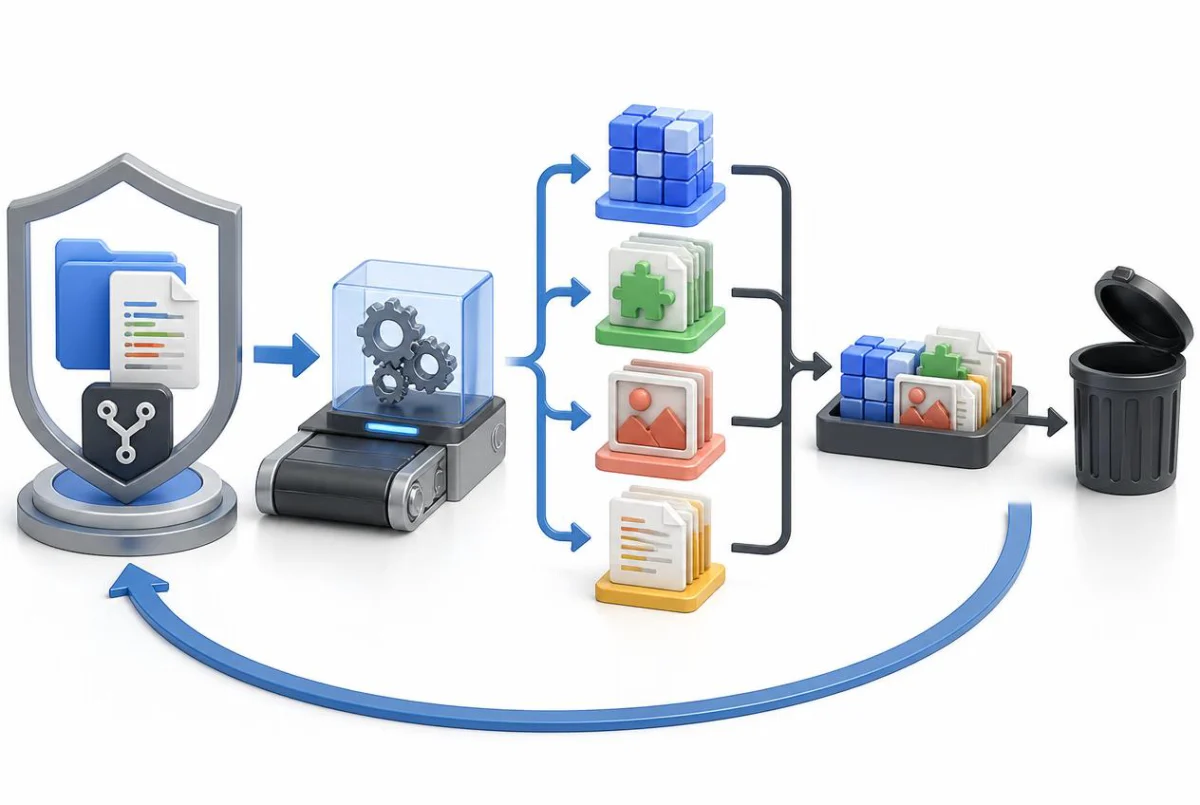
What DerivedData is and why it gets huge
DerivedData is where Xcode keeps everything it derives from your source code: intermediate build objects, compiled products, module caches, symbol indexes for code completion and jump-to-definition, and build logs. It lives at ~/Library/Developer/Xcode/DerivedData by default, with one subfolder per project or workspace you have ever opened.
It grows for a structural reason: Xcode creates a DerivedData folder for every project you open — including one-off clones you built once and never touched again — and it does not proactively remove them. Each folder holds separate build products per configuration and destination (Debug and Release, simulator and device), so measure the project subfolders rather than assuming how much your machine will recover.
Everything in it is regenerable by definition — that is what "derived" means. Deleting DerivedData never touches your source code, your project settings, or anything under version control. The only cost is time: the next build of each project is a full clean build, and indexing runs again in the background for a few minutes.
Delete DerivedData
Xcode's Clean Build Folder command (Product > Clean Build Folder, or Shift-Command-K) only clears build products for the currently open project — useful for fixing a weird build, but it barely moves the disk-space needle. To reclaim real space, delete the DerivedData folders themselves: reveal them from Xcode's Locations settings or go to the folder in Finder, or remove them from Terminal. All three end in the same place.
Deleting per-project is the surgical option: keep DerivedData for the two or three projects you build daily, and remove the folders for everything else. Deleting the whole thing is the fast option, and it is fine too — you just pay the full-rebuild cost on every project at once.
- Quit Xcode first. Deleting DerivedData while Xcode is running can leave its indexer confused, and files Xcode has open may not delete cleanly.
- Find the folder: in Xcode, open Settings > Locations, and click the small arrow next to the DerivedData path to reveal it in Finder. Or in Finder press Command-Shift-G and enter ~/Library/Developer/Xcode/DerivedData directly.
- Sort the project subfolders by size, select the ones you want gone (or Command-A for all of them), and move them to the Trash. Trash first is the safer habit — you can restore instantly if you change your mind.
- From Terminal instead: rm -rf ~/Library/Developer/Xcode/DerivedData deletes everything in one shot. It is faster than Finder for very large folders, but read the note below before using it.
- Reopen Xcode and build. Expect the first build of each project to take noticeably longer, and expect "Indexing" to run in the activity bar for a while — both are one-time costs.
Be careful with rm -rf: it bypasses the Trash and deletes permanently, with no undo. Type the path exactly, never run it with sudo for this task, and if you are not comfortable in Terminal, the Finder route does the same job reversibly.
Clear old simulator runtimes
Simulators are often another major developer-storage category. Every downloaded iOS, watchOS, or tvOS runtime has its own footprint, and each simulated device keeps data under ~/Library/Developer/CoreSimulator/Devices. If you have been through a few Xcode upgrades, inspect runtimes for OS versions that have left your test matrix.
The quickest win is the built-in cleanup command: run xcrun simctl delete unavailable in Terminal. It deletes every simulator device marked unavailable — mostly orphans left behind by removed runtimes and old Xcode versions — along with the apps and data inside them. Review the list with xcrun simctl list devices first, especially if you keep more than one Xcode installed.
For the runtimes themselves, open Xcode's Settings > Components (called Platforms in Xcode 14–15). You will see each installed simulator runtime with its size; select an old one and delete it. Keep only the latest runtime per platform unless you actively test on older OS versions.
You can also prune individual simulated devices in Window > Devices and Simulators: switch to the Simulators tab, right-click any device you never use — the six duplicate iPhone models with data from old test runs — and choose Delete. Each device's saved data and apps go with it.
Archives, device support files, and caches
Archives accumulate at ~/Library/Developer/Xcode/Archives every time you run Product > Archive to distribute a build. Each archive contains a full app build plus its dSYM debug symbols, often 100 MB to 1 GB apiece. Before deleting, know the trade-off: the dSYMs inside are what let you symbolicate crash reports for that exact build. Keep archives for versions still live on the App Store or TestFlight (or confirm App Store Connect has the dSYMs), and delete the rest — the safest route is Xcode's Organizer (Window > Organizer > Archives), where you can review and delete them with context.
iOS DeviceSupport, at ~/Library/Developer/Xcode/iOS DeviceSupport, holds debugging symbols that Xcode copies from every physical iPhone or iPad you have ever plugged in — one folder per iOS version, typically 2-5 GB each. Folders for iOS versions none of your devices run anymore are pure dead weight: delete them, and if you ever connect a device on that version again, Xcode simply re-copies the symbols (you will see "Preparing debugger support" once). Sibling folders exist for watchOS and tvOS devices too.
Xcode also keeps its own caches under ~/Library/Caches/com.apple.dt.Xcode, and simulators keep theirs in ~/Library/Developer/CoreSimulator/Caches. Both are rebuilt on demand, but clear them only while Xcode and the Simulator app are quit, and leave any CoreSimulator cache files you do not recognize alone.
Package manager caches (SwiftPM, CocoaPods, npm, Homebrew)
Package managers keep downloaded dependencies so future installs are fast. That is useful and can still become a large disk category on a machine that has seen years of projects. These download caches are rebuildable, but the next install will need to fetch packages again.
Swift Package Manager caches downloaded packages at ~/Library/Caches/org.swift.swiftpm, and each project's resolved checkouts also live inside its DerivedData folder — so clearing DerivedData already clears those. The shared cache you can delete from Finder, or with rm -rf on that path.
CocoaPods keeps its downloaded pods at ~/Library/Caches/CocoaPods. The clean way to empty it is the built-in command: pod cache clean --all. Your projects' Pods folders are untouched; only the download cache goes.
npm's cache lives at ~/.npm and can reach many gigabytes on a JavaScript-heavy machine. Run npm cache clean --force to empty it (npm insists on the flag because the cache is self-healing and normally never needs cleaning; deleting it is safe — packages are simply downloaded again on the next install). pnpm users can run pnpm store prune instead.
Homebrew hoards old downloads and outdated package versions. brew cleanup removes outdated versions and stale downloads, and a global run also uninstalls dependencies nothing needs any more (unless HOMEBREW_NO_AUTOREMOVE is set); brew cleanup --prune=all also empties the entire download cache. Run brew cleanup -n first if you want a dry-run list of what would go.
Automate it
Everything above works, but developer junk is a treadmill: DerivedData is back within a week of normal work, caches refill, and every Xcode update strands another runtime. If you would rather not re-run six manual procedures every month, this is the part worth automating — with a tool that shows its reasoning instead of silently bulk-deleting.
AskClean treats developer files as first-class categories: one scan itemizes Xcode DerivedData per project, old simulator runtimes (read via simctl, keeping the latest per platform), device support files, and package-manager caches for npm, SwiftPM, cargo, uv, and more. It also catches the newer space hogs — local AI models — listing Hugging Face models one by one and the Ollama model library as a single item, all unchecked by default.
Every item comes with an explanation — what it is, whether it can be rebuilt, what deleting costs — and nothing runs until you confirm it. Confirmed items are deleted permanently rather than moved to the Trash, so review each selection before you confirm; your source code and photo library are never touched. It is the same checklist as this guide, minus the hour of Terminal work.
What is rebuildable—and what is not
This is a deletion-boundary table, not a universal savings claim. Measure your Mac before and after any action — the read-only audit script in the Xcode Simulator storage guide reports these folders without changing anything.
| Category | Default location | Deletion consequence |
|---|---|---|
| DerivedData | ~/Library/Developer/Xcode/DerivedData | Rebuilds and reindexes; source code and git history remain untouched. |
| Simulator devices | ~/Library/Developer/CoreSimulator/Devices | Selected virtual-device apps and test data are lost; delete through simctl or Xcode. |
| Archives | ~/Library/Developer/Xcode/Archives | May remove dSYMs needed for crash symbolication; review in Organizer first. |
| DeviceSupport | ~/Library/Developer/Xcode/iOS DeviceSupport | Debug symbols are copied again if that OS version reconnects. |
FAQ
Is it safe to delete DerivedData?
Yes — it is one of the safest large deletions on a Mac. DerivedData contains only files Xcode generates from your source: build products, module caches, indexes, and logs. Your code, project files, and git history live elsewhere and are never affected. The only consequence is that the next build of each project is a full rebuild and indexing runs again.
How often should I clear DerivedData?
There is no required schedule — clear it when it is big enough to matter, which for most active developers means every month or two. Two moments always justify it: when you need disk space fast, and when a project shows unexplainable build errors or stale code completion, where a DerivedData wipe is the standard first fix.
Will Xcode be slower after I delete DerivedData?
Temporarily, yes. The first build of each project is a clean build, which can take several times longer than an incremental one, and background indexing needs a few minutes before code completion and search are fully back. After that first cycle, performance is exactly what it was — DerivedData holds caches, not optimizations you permanently lose.
What about ~/Library/Developer/CoreSimulator — can I delete it?
Not blindly — it holds your currently installed simulators and their data, and deleting it wholesale breaks them until you reinstall runtimes. Prune it properly instead: run xcrun simctl delete unavailable for orphaned devices (their apps and data go with them), remove old runtimes in Xcode's Settings > Components, delete unused devices in Devices and Simulators, and clear only the Caches subfolder by hand, with Xcode and Simulator quit.
Does Clean Build Folder do the same thing?
No. Product > Clean Build Folder (Shift-Command-K) clears build products for the current project only, and leaves indexes, module caches, and every other project's folders in place. It is a build-troubleshooting tool, not a disk-space tool — reclaiming real space means deleting DerivedData folders themselves.
Sources