
Can You Delete Xcode Archives? Safely Remove Old Builds
AskClean Team · Updated 2026-11-02
Yes, you can delete old Xcode Archives, but only after confirming the build is retired and its dSYM is no longer needed for crash reports. Review .xcarchive files individually in Xcode Organizer, keep every live App Store or TestFlight build, and move only superseded archives to the Trash.
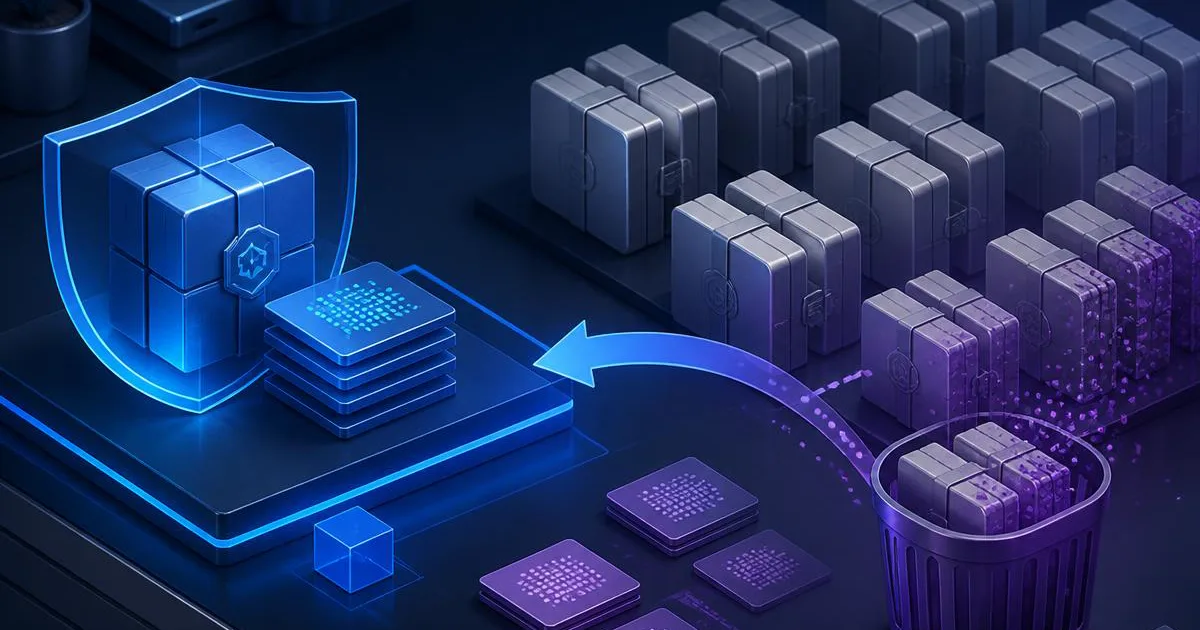
Why Xcode Archives are different from DerivedData
An archive is the result of Product > Archive: a distributable build preserved as an .xcarchive bundle. By default, Xcode stores these bundles under ~/Library/Developer/Xcode/Archives, grouped into date folders, and shows them in Organizer. A long-running app can accumulate many copies across release candidates, TestFlight uploads, and production versions.
Unlike DerivedData, an archive is not merely a performance cache. It can contain the exact app binary, build metadata, and dSYM files produced for that build. Apple explains that a dSYM is tied to a binary by UUID. Rebuilding the same source later does not recreate an interchangeable symbol file because the new binary receives different identifiers.
That distinction changes the cleanup rule. DerivedData can be regenerated at the cost of a slower first build. A deleted archive may be impossible to reconstruct exactly. If a crash report arrives for that binary and you no longer have its matching symbols, stack frames can remain as memory addresses instead of useful function names and source locations.
Audit before deleting anything
Start in Xcode rather than Finder. Open Window > Organizer, choose Archives, select the relevant app, and review the version, build number, creation date, and distribution status of each entry. Organizer gives an archive context that a dated folder name does not.
Create a keep list before a delete list. Keep the archive for every version currently available to users, every active TestFlight build, any enterprise or ad hoc build still installed, and any release whose crash reports you may still investigate. Also keep a known-good release if your team relies on its exported binary, notarization history, or signing evidence.
Do not assume that a successful upload makes your local archive disposable. Depending on the platform and upload settings, Apple may receive symbols, but Apple's debugging guidance still recommends retaining the archive for every build you distribute. Your local archive is also the clearest record connecting the binary, dSYM, version, build number, and export.
- Open Window > Organizer and select Archives.
- Choose the app, then record the version and build number of every production, TestFlight, enterprise, or ad hoc build still in use.
- Confirm that required symbols have been uploaded where applicable, and copy irreplaceable archives to backed-up storage if your retention policy requires it.
- Mark only superseded release candidates, abandoned internal builds, and retired versions outside your crash-investigation window as deletion candidates.
- Delete candidates one at a time from Organizer, then verify the expected entries remain before emptying the Trash.
A date alone is not a safe retention policy. An older production binary can remain installed on customer devices long after a newer version ships.
Measure the archive folder without changing it
If your goal is disk space, measure first. In Finder, press Command-Shift-G and open ~/Library/Developer/Xcode/Archives. Switch to list view, enable Calculate all sizes in View Options, and sort by size. This is read-only and makes unusually large archives visible.
Terminal users can run du -sh ~/Library/Developer/Xcode/Archives for a total. To inspect date folders, run du -sh ~/Library/Developer/Xcode/Archives/* and sort the output yourself. These commands measure files; they do not delete anything.
An archive is a package, so Finder normally presents it as one item. You can right-click a copied archive and choose Show Package Contents when diagnosing its size, but do not edit files inside the canonical bundle. Removing selected internal files can leave an archive that looks present yet no longer exports or symbolizes correctly.
The safest deletion workflow
Organizer is the preferred deletion path because it keeps the app identity, version, and build number beside the action. Select a confirmed retired archive and use Delete. Xcode removes the archive bundle; depending on macOS and Xcode behavior, you may be asked to confirm the operation.
Finder is useful when Organizer cannot open an old or damaged bundle. Navigate to the Archives directory, identify the exact .xcarchive by matching its Info.plist metadata with your audit, and move that one bundle to the Trash. Do not delete an entire date folder merely because its name is old.
Leave the Trash intact until you have reopened Organizer, exported any build your workflow still requires, and symbolicated a representative crash if symbols are business-critical. Moving to the Trash creates a short recovery window. Permanent Terminal deletion removes that safety margin without making the cleanup more correct.
Archive retention that does not grow forever
A practical policy is based on release state, not an arbitrary file age. Keep all builds currently distributed; keep recent superseded production builds for the period in which you still accept crash reports; retain enterprise builds until their installations expire; and keep milestone releases required by legal, support, or incident-response policy.
For teams, make retention explicit in the release checklist. Record where archives are stored, whether dSYMs were uploaded, who can retrieve them, and when a build becomes eligible for deletion. If archives move to external or cloud-backed storage, test restoration instead of assuming a copied package is usable.
Revisit the folder after major release cycles. A ten-minute quarterly review is safer than a panic deletion when the startup disk is full. For immediate, low-risk space, clear DerivedData and obsolete Simulator data first; review archives only after the Mac has enough working room to proceed calmly.
How AskClean handles archives
AskClean deliberately does not label Xcode Archives as ordinary rebuildable cache. It scans the Archives directory, lists individual .xcarchive bundles, and assigns an irreversible-cost warning so you can review old builds without facing an all-or-nothing folder deletion.
The app leaves the decision with you. It can show which archive consumes space and permanently delete an item you approve, but it cannot know your production support window or replace a missing dSYM. That boundary is intentional: storage automation should reveal release artifacts, not silently decide that they no longer matter.
Archive deletion boundary
Classify the artifact by recovery cost before using its age or size.
| Item | Default location | What deletion changes |
|---|---|---|
| DerivedData | ~/Library/Developer/Xcode/DerivedData | Rebuilt from source; the next build and index take longer. |
| Xcode archive | ~/Library/Developer/Xcode/Archives | Removes the preserved binary, metadata, and potentially its matching dSYM. |
| Exported dSYM copy | Your release artifact storage | Can remove the only remaining symbols for a distributed binary. |
| Retired internal archive | ~/Library/Developer/Xcode/Archives | Usually eligible only after confirming the build is no longer installed or supported. |
FAQ
Can I delete everything in ~/Library/Developer/Xcode/Archives?
Not safely as a blanket action. Archives can contain the exact dSYMs and binaries for distributed builds. Keep every live production, TestFlight, enterprise, or ad hoc build and any version whose crashes you may still investigate.
Will deleting an archive remove the app from the App Store?
No. Deleting a local .xcarchive does not remove an already uploaded app from App Store Connect or customer devices. It removes your local release artifact, which may still be needed for re-exporting or symbolication.
Can I recreate a dSYM by rebuilding the same commit?
No reliable replacement is created. The dSYM must match the distributed binary's UUID, and a new build produces a different binary identity. Preserve the original archive or its matching symbols.
Should I delete archives before DerivedData?
Usually no. DerivedData is rebuildable and is the lower-risk first target. Archives deserve a release-by-release audit because deleting the wrong one can remove irreplaceable debugging evidence.
Sources