
iPhone Storage Full but Nothing on Phone? Here's What's Actually Eating It
AskClean Team · Updated 2026-11-02
Your iPhone storage is full because most of what fills it is invisible in daily use: System Data caches, photos sitting in Recently Deleted, message attachments, and app files hidden under Documents & Data. Open Settings > General > iPhone Storage to see the real breakdown — then this guide walks you through clearing each category.
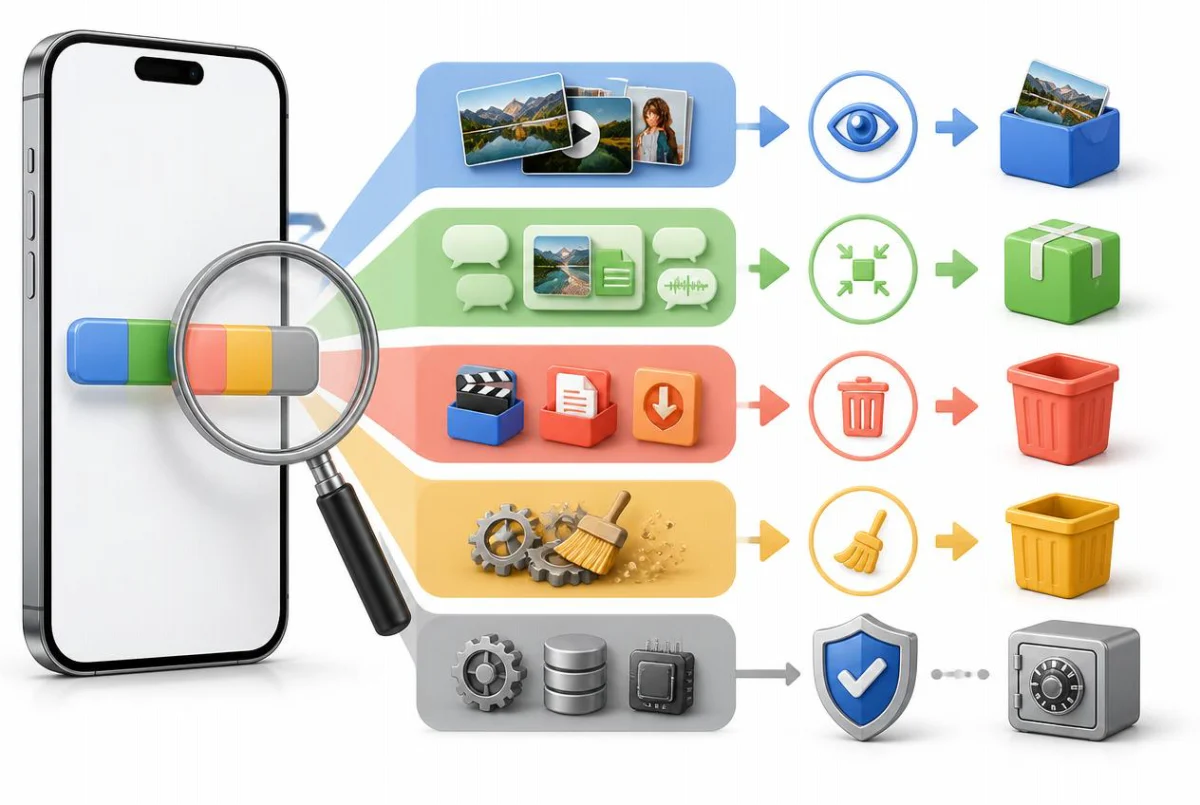
First: read the storage chart properly
Before deleting anything, find out what is actually taking the space. Apple gives you a full breakdown at Settings > General > iPhone Storage: a colored bar at the top splits your storage into categories like Apps, Photos, Media, Messages, iOS, and System Data, and below it every app is listed with its true footprint. Give the screen a few seconds — the chart is calculated on the spot, and the numbers keep refining while you watch.
Two categories confuse almost everyone. iOS is the operating system itself; you cannot shrink it and shouldn't try. System Data (called Other on older versions) is the catch-all: caches, logs, Siri voices, fonts, temporary files, streamed video buffers, and update leftovers. iOS manages it automatically and is supposed to purge caches when space runs low, but in practice it can balloon to 20 GB or more — we cover what to do about that in the last section.
The app list is where the real diagnosis happens. Tap any app and you'll see two numbers: App Size (the app itself) and Documents & Data (everything it has stored — downloads, caches, message attachments, offline files). A messaging app that is 200 MB to install can easily carry 10 GB of Documents & Data. That gap between the small app and its huge data pile is usually the answer to "why is my storage full when I barely have anything installed."
This same screen also shows Apple's own recommendations near the top — things like Review Large Attachments or Auto Delete Old Conversations. They're worth a look, but they only scratch the surface, which is why the rest of this guide exists.
- Open Settings, tap General, then tap iPhone Storage. Wait a few seconds for the colored bar and the app list to finish calculating.
- Read the bar first: note roughly how much is Photos, how much is Apps, and how much is System Data. That tells you which sections of this guide will pay off most.
- Scroll the app list, which is sorted by size. Tap the biggest entries and compare App Size against Documents & Data for each one.
- Check the Recommendations section at the top of the screen and note which suggestions Apple is making — they hint at where your specific problem is.
If Photos dominates the bar, start with the next section. If one or two apps dominate, jump to the Documents & Data section. If System Data is the monster, go straight to the last section.
Photos and videos: the three invisible space killers
On most iPhones, the photo library is the single biggest consumer of storage — and the frustrating part is that much of it doesn't look like anything when you scroll. Three culprits do most of the damage, and all three hide in plain sight.
Killer one: Recently Deleted isn't empty. When you delete photos or videos, iOS moves them to the Recently Deleted album, where they keep occupying storage for 30 days before being removed automatically. This is the number-one reason people say "I deleted everything and my storage didn't change." The photos are gone from your library view, but the gigabytes are still there until the album actually empties.
Killer two: duplicates, bursts, and near-identical retakes. Ten shots of the same sunset, five versions of a group photo, screenshots you needed for five minutes — individually small, collectively enormous. Since iOS 16, Photos has a built-in Duplicates album that merges exact copies, but it deliberately ignores similar-but-distinct shots, which is where most of the waste lives. Our guide to deleting duplicate photos on iPhone covers the full cleanup, including what the built-in tool misses.
Killer three: video, especially 4K. Video is dramatically heavier than photos: by Apple's own estimates on the Record Video settings screen, one minute of 4K at 30 fps runs about 190 MB in the space-saving HEVC format, and 4K at 60 fps roughly 440 MB per minute. A handful of long clips from a birthday or a holiday can quietly outweigh thousands of photos. If deleting them is off the table, they can be compressed with barely visible quality loss — our guide to compressing videos on iPhone walks through how.
If you'd rather not spend evenings doing the similar-photo triage by hand, this is exactly what Photo Slim was built for: one on-device scan handles all three killers at once. It groups look-alike shots with the best one pre-selected, rounds up blurry photos and old screenshots, flags duplicate videos, and can shrink the keepers too — near-lossless HEVC compression for oversized videos, smart recompression for large photos. Your photos never leave your iPhone, and scanning and previewing the results is free, so you see the recoverable gigabytes before paying anything; a one-time in-app purchase unlocks cleanup, and every deletion goes through Recently Deleted with the standard 30-day recovery window.
- Empty Recently Deleted first for an instant win: open Photos and find Recently Deleted under Utilities (on iOS 26 and later, tap Collections, then Utilities; on iOS 18, scroll down the main view; on iOS 16 and 17, use the Albums tab), authenticate with Face ID, then tap Select and Delete All.
- Merge exact duplicates: in the same Utilities section, tap Duplicates, then use Select > Select All > Merge. Photos keeps the best-quality copy of each set and moves the rest to Recently Deleted.
- Hunt the big videos: open Media Types > Videos (under Collections on iOS 26 and later, in the main view on iOS 18, or in the Albums tab on iOS 16 and 17) and skim for the longest clips. Delete the ones you don't need, or compress the keepers instead of deleting them.
- Stop the bleeding for future recordings: go to Settings > Camera > Record Video and pick 1080p at 30 fps for everyday use. Also make sure High Efficiency is selected under Settings > Camera > Formats so new photos and videos use HEIF/HEVC.
- Sweep screenshots: Media Types > Screenshots collects them all in one place for a fast select-and-delete pass.
Space only comes back when items leave Recently Deleted. Whatever you delete — manually or with a cleaner app — remember to empty that album (or wait 30 days) before judging the results.
Message attachments and browser caches
Messaging apps are the quietest hoarders on the phone. Every photo, video, voice note, and GIF you've ever sent or received in Messages is still on your iPhone unless you've told iOS otherwise — years of group chats can add up to many gigabytes that never show in your photo library.
Third-party messengers are often worse, because they keep their own copies of everything inside their sandbox. WhatsApp stores received media per chat; WeChat is famous for accumulating tens of gigabytes of chat media and cache over a couple of years. Both have built-in storage managers, and using them beats deleting the app.
Safari's cache and website data grow too. Clearing them recovers less than chat media usually, but it's quick, and it also chips away at the System Data category — the cache counts there, not under an app.
- For Messages: go to Settings > General > iPhone Storage, tap Messages, and use Review Large Attachments to see every attachment sorted by size — swipe or select to delete the big ones without touching the conversations.
- Optionally cap message history: in Settings, open Messages (under Settings > Apps on newer iOS versions), tap Keep Messages, and change Forever to 1 Year or 30 Days. Be aware this permanently deletes older messages and their attachments.
- For WhatsApp: open WhatsApp, go to Settings > Storage and Data > Manage Storage. It surfaces files larger than 5 MB and media sorted by chat, so you can bulk-delete forwarded videos without losing the conversations.
- For WeChat: go to Me > Settings > General > Storage, then use Clean to clear the cache and Manage to review and delete chat media per conversation.
- For Safari: in Settings, open Safari (under Settings > Apps on newer iOS versions) and tap Clear History and Website Data. This signs you out of most websites, so keep your passwords handy.
In WhatsApp, also check Settings > Chats > Save to Photos. If it's on, every received photo is being duplicated into your photo library as well — turning it off prevents the same media from costing you storage twice.
App Documents & Data: when deleting and reinstalling makes sense
Back in the iPhone Storage list, the apps with a huge Documents & Data figure fall into two camps. The first camp is deliberate downloads: offline playlists in music apps, downloaded episodes in podcast and streaming apps, offline maps. For these, open the app and prune the downloads from inside it — that's the intended path and loses nothing you can't re-download.
The second camp is cache bloat: social media, video, and shopping apps that cache every image and clip you've scrolled past and never let go. A few apps offer a clear-cache button in their own settings, but most don't, and iOS provides no way to clear another app's cache from outside. For those, the blunt-but-effective fix is to delete the app and reinstall it: the binary comes back from the App Store in minutes, and the cache pile is gone.
Two cautions before you delete-and-reinstall. First, make sure your account is signed in via a login you remember, because your local data goes with the app. Second, never do this to a messaging app without backing up its chats first — WhatsApp and WeChat chat history lives on the device, and deleting the app without a backup erases it for good.
- Go to Settings > General > iPhone Storage and tap a bloated app to see its Documents & Data figure.
- If the data is downloads you chose (episodes, playlists, offline maps), open the app and delete them from within the app instead.
- If it's cache you never asked for, tap Delete App on the storage screen, then reinstall it from the App Store and sign back in.
- For chat apps, run the app's own backup first (for example WhatsApp Settings > Chats > Chat Backup) before deleting anything.
Offload Unused Apps and iCloud photo optimization: what they really do
The iPhone Storage screen pushes two automatic remedies, and both are useful — as long as you understand exactly what they do and don't do.
Offload App removes the app itself but keeps its documents and data on the phone, so the icon stays on your Home Screen (with a cloud symbol) and tapping it re-downloads the app with everything intact. That's the feature's strength and its weakness in one sentence: it's perfectly safe, but it only recovers the App Size portion. Offloading a game with a 4 GB binary is a big win; offloading a chat app whose 200 MB binary sits on 8 GB of data recovers almost nothing. You can offload apps one at a time from their storage page, or let iOS do it automatically via the Offload Unused Apps setting.
Optimize iPhone Storage, the iCloud Photos option, keeps full-resolution originals in iCloud and swaps local copies for smaller device-sized versions when your phone runs low on space. It genuinely frees a lot of local storage on photo-heavy phones. The honest caveats: your full library must fit in your iCloud plan, which for most people means paying for iCloud+ beyond the free 5 GB; opening an optimized photo or video needs a network connection to fetch the original; and because iCloud Photos is a sync service rather than an archive, deleting a photo on your iPhone deletes it from iCloud and every other synced device too.
One more truth about optimization: it stores your clutter, it doesn't remove it. Every duplicate, blurry shot, and forgotten screenshot gets faithfully uploaded and counts against the iCloud storage you pay for. Cleaning the library first, then optimizing what's left, gives you a smaller phone footprint and a cheaper iCloud tier at the same time.
- To offload one app: go to Settings > General > iPhone Storage, tap the app, then tap Offload App. Its data stays; tap the icon later to reinstall.
- To offload automatically: in Settings, open App Store (under Settings > Apps on newer iOS versions) and turn on Offload Unused Apps. iOS will only trigger it when you're low on storage.
- To optimize photos: go to Settings, tap your name, tap iCloud, then Photos, make sure syncing is on, and select Optimize iPhone Storage.
- Check your iCloud headroom in Settings > your name > iCloud — if your library is larger than your plan, upgrade the plan or shrink the library before relying on optimization.
Neither feature deletes anything, which is why neither one fixes a full iPhone by itself. They buy space; cleaning the photo library and app data is what actually reduces what you own.
When System Data is the problem
If the storage chart shows System Data at 15, 20, or 30 GB, you've met the category everyone loves to hate. There is no button to clear it — Apple's position is that iOS manages these caches itself and shrinks them when the device needs space. Often that's true; when it isn't, a few interventions consistently help.
Start cheap: restart the iPhone. A reboot flushes many temporary files and gives the system a chance to run its cleanup routines; it's common to see System Data drop by a couple of gigabytes on its own after a restart, though it may take a while to settle.
Next, update iOS. Installing an update rebuilds significant chunks of the system's cached data, and specific updates have historically fixed bugs that caused runaway logs or caches. Go to Settings > General > Software Update. If the update itself won't install because storage is too full, clear photo and app space using the earlier sections first — iOS needs several gigabytes of working room to update.
Clearing Safari's history and website data (previous section) and trimming old message threads also feed directly into System Data, since browser caches and some message indexes are counted there.
The last resort — and the only method that reliably fixes a genuinely pathological System Data figure — is to erase the iPhone and restore it. Back up to iCloud or a computer, erase all content and settings, then restore from that backup. The restore brings back your apps, photos, and settings, but not the accumulated cache sludge, and System Data typically comes back a fraction of its former size. Budget an hour or two and don't skip the backup verification step.
- Restart: press and hold the side button (together with a volume button on Face ID models), slide to power off, wait 30 seconds, then power back on. Recheck the storage chart after a few minutes.
- Update: go to Settings > General > Software Update and install anything pending.
- If System Data is still bloated, back up first: Settings > your name > iCloud > iCloud Backup > Back Up Now, and confirm the backup finished with today's timestamp.
- Erase: go to Settings > General > Transfer or Reset iPhone > Erase All Content and Settings and confirm.
- During setup, choose to restore from your iCloud or computer backup, sign in, and let apps and photos re-download over Wi-Fi.
Treat the erase-and-restore as the final step, not the first. Most "storage full but nothing on phone" cases are solved by Recently Deleted, message attachments, and app caches long before a restore is justified.
FAQ
I deleted lots of photos but my storage didn't change. Why?
Deleted photos and videos move to the Recently Deleted album, where they keep occupying storage for 30 days before being permanently removed. Open Photos, find Recently Deleted under Utilities, authenticate, then tap Select and Delete All. The freed space appears in the storage chart shortly after — give it a few minutes to recalculate.
How do I clear System Data on iPhone?
There's no direct clear button — iOS manages it automatically. What works in practice, in order of effort: restart the iPhone, clear Safari's history and website data, shorten your Messages retention, install any pending iOS update, and as a last resort back up, erase the iPhone, and restore from the backup. The restore path is the only one that reliably fixes an extreme System Data figure.
I have iCloud storage — why is my iPhone still full?
iCloud and iPhone storage are separate things, and iCloud Photos is a sync service, not an offload. Even with Optimize iPhone Storage on, your phone still keeps device-sized copies of everything plus all your apps and their data, and optimization only kicks in when space runs low. Also note that deleting a photo from the phone deletes it from iCloud too — iCloud isn't a place your deleted photos go to live.
Does offloading apps free much space?
Only the app binary itself — Documents & Data stays on the phone by design, so you can pick up where you left off after reinstalling. Offloading is great for large games and rarely used apps, and nearly useless for apps whose bulk is data, like messengers. Check the App Size versus Documents & Data split in iPhone Storage before expecting savings.
Do text messages really take up storage?
The texts themselves are tiny; the attachments are not. Years of photos, videos, voice memos, and GIFs inside Messages can total many gigabytes. Use Settings > General > iPhone Storage > Messages > Review Large Attachments to delete the big files without deleting any conversations, or set Keep Messages to 1 Year if you're comfortable letting old threads expire.
How much free space should I keep on my iPhone?
Keep at least a few gigabytes free at all times. iOS needs working room for updates, app installs, camera recording, and its own cache management — a phone running with under 1 GB free gets slow, fails to update, and can even refuse to take photos. If you're constantly bumping the ceiling, a real cleanup beats deleting one app at a time forever.
Sources