
How to Delete Duplicate Photos on iPhone (Step by Step)
AskClean Team · Updated 2026-11-02
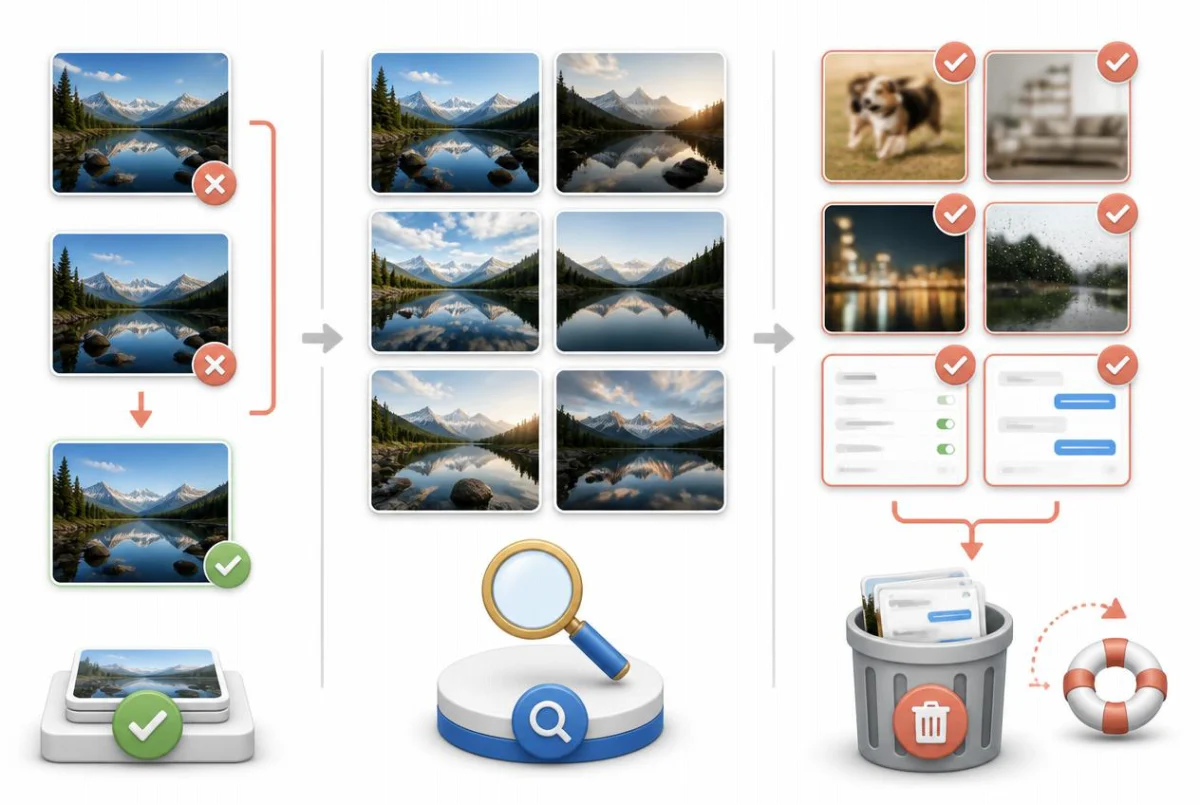
To delete duplicate photos on your iPhone, open Photos, find Duplicates under Utilities, and tap Merge beside each set. Your iPhone keeps the highest-quality copy, combines useful metadata, and moves the redundant items to Recently Deleted for 30 days. If the album is missing or you need to remove similar shots, use the checks below.
First: use the built-in Duplicates album
Before you install anything, use the tool Apple already gave you. Since iOS 16, the Photos app quietly scans your library in the background and collects exact and near-exact copies into a Duplicates album. The detection runs entirely on your iPhone, and merging is the safest possible operation: nothing is lost that isn't a genuine copy of something you keep.
One thing to know up front: the album is not instant. Photos analyzes your library over time, usually while your iPhone is locked, connected to power, and on Wi-Fi. On a large library it can take days to fully populate — and if Photos hasn't found any duplicates yet, the album simply doesn't appear at all.
Merging is smarter than deleting. When you tap Merge, Photos keeps the highest-quality version of the photo and combines the relevant data from all copies — captions, keywords, favorites, and date information — into the one it keeps. The redundant copies move to Recently Deleted, where they stay recoverable for 30 days.
- Open the Photos app and go to Utilities: on iOS 26 and later, tap Collections, then Utilities; on iOS 18, scroll down the main view to Utilities; on iOS 16 and 17, tap the Albums tab and scroll to Utilities. Then tap Duplicates.
- Review the sets. Each row shows two or more copies Photos believes are the same shot, with file sizes underneath — check the sizes if you want to confirm which version is the biggest.
- Tap Merge next to a set, then confirm with Merge Items. Photos keeps the best-quality copy, folds the metadata from the others into it, and moves the rest to Recently Deleted.
- To clear everything at once, tap Select in the top corner, then Select All, then Merge. On a library with hundreds of duplicate sets this takes seconds instead of an afternoon.
- Finish in Recently Deleted, in the same Utilities section, if you need the space back immediately: tap Select, then Delete All. Otherwise just wait — everything there is removed automatically after 30 days.
Don't see a Duplicates album? Either Photos found no duplicates, or the background scan hasn't finished. Leave your iPhone locked and charging overnight and check again — the analysis only runs when the phone is idle.
Why the built-in album misses most "duplicates"
Apple's matcher is deliberately conservative. It flags exact copies and near-exact variants of the same image — the same photo saved twice, re-downloaded at a different resolution, converted to another format, or lightly edited. What it will not do is judge two different photos of the same moment, even when they are practically indistinguishable to you.
That distinction is exactly where most of your wasted space lives. Ten nearly identical shots of the same sunset, a burst of your kid mid-jump, five retakes of a group photo where someone blinked — each of those is a technically distinct image, so the Duplicates album ignores all of them. To Apple they are separate memories; to your storage bar they are one keeper and nine copies.
The album also has nothing to say about blurry photos, accidental pocket shots, or the hundreds of screenshots you took to remember something for five minutes. None of those are duplicates of anything, but they are the same kind of dead weight — and clearing them requires either your own eyes or software that actually scores image similarity and sharpness.
So treat the Duplicates album as step one, not the whole job. On most libraries it recovers a modest amount of space — the exact copies — and leaves the much larger pile of similar, burst, and blurry shots untouched.
Find similar and burst photos by hand
You can absolutely clean the rest manually, and for burst photos Apple even gives you a purpose-built tool. When you slide the shutter button sideways (or press Volume Up, if you've turned on that option in Settings), Photos stores the sequence as a single burst — and it has a picker for keeping only the frames you want.
For ordinary retakes — the five versions of the same group shot taken one after another — there is no picker, so the workflow is simple scrolling: view your library by month, watch for clusters of near-identical thumbnails, open each cluster, choose your keeper, and swipe-select the rest for deletion.
- Handle bursts first: open Media Types > Bursts (in Collections on iOS 26 and later, the main view on iOS 18, or the Albums tab on iOS 16 and 17). Open a burst, tap Select, mark the frames worth keeping, tap Done, then choose "Keep Only Favorites" — Photos deletes every other frame in the sequence.
- Next, open your library — the Library tab on iOS 26 and later and on iOS 16 and 17, or the grid at the top of the main view on iOS 18 — and switch to the Months view. Clusters of look-alike thumbnails jump out at this zoom level far better than in the all-photos grid.
- Open a cluster, pick the best shot, then return to the grid, tap Select, and drag your finger across the rejects to select them all in one motion before tapping the trash icon.
- Sweep screenshots separately: Media Types > Screenshots collects every one. Sort through the recent ones you still need, then select and delete the rest in bulk.
- Empty or ignore Recently Deleted depending on urgency — deleted items keep occupying space there for up to 30 days unless you clear the album yourself.
Budget honestly: a 10,000-photo library takes several evenings to review by hand, and attention fades fast. Most people clean one month, get bored, and never come back — which is fine for a light tidy-up, but not for reclaiming serious space.
Use a cleaner app for similar and blurry shots
This is the one part of the job where a third-party app genuinely earns its place: doing the similarity and sharpness judgment your eyes would otherwise do, across the whole library at once. Before installing anything, hold it to three standards — analysis should run entirely on your device (your photos should never be uploaded to anyone's server), deletions should go through the system's Recently Deleted album so everything is reversible, and the price should be honest, not a weekly subscription hiding behind a trial.
Photo Slim is our app, and it was built to those standards. It scans your library on-device and groups truly similar photos — retakes, bursts saved as separate shots, near-identical frames — then automatically pre-selects the best shot in each group to keep, so reviewing a group takes a glance rather than a comparison. Separate scans surface blurry photos, old screenshots, and duplicate videos, which are usually the biggest single space wins.
Scanning and previewing everything is free, so you can see exactly what it found — and how many gigabytes it would recover — before paying anything. Unlocking cleanup is a $14.99 one-time purchase, not a subscription. Every deletion goes to Recently Deleted with the standard 30-day recovery window, and analysis is 100% on-device: your photos never leave your iPhone. It requires iOS 16 or later, and you can get it on the App Store at https://apps.apple.com/app/id6784203501.
Keep duplicates from coming back
Messaging apps are the number-one source of recurring duplicates. WhatsApp in particular saves every incoming photo to your Photos library by default, so each group-chat meme and re-forwarded photo lands in your library — often multiple times. Turn it off in WhatsApp under Settings > Chats > Save to Photos, and check for the same auto-save behavior in Telegram, WeChat, and any other chat app you use heavily.
Your own shutter habits matter too. Holding the shutter button records video by default on modern iPhones, but sliding it sideways fires a burst — dozens of frames in a second. Bursts are useful for action shots, but if you shoot them casually, prune them the same day with the Keep Only Favorites flow above, while you still remember which frame you wanted.
Duplicates also creep in through transfers: AirDropping photos back from a device you already synced, downloading full-size copies from a shared album you contributed to, or importing the same camera card twice. The Duplicates album will eventually catch these exact copies, so make a habit of checking it every month or two — merging five sets as they appear beats merging five hundred next year.
FAQ
What happens when you merge duplicate photos on iPhone?
Photos keeps the highest-quality version and combines useful information from the other copies, including captions, keywords, favorites, and date information. The redundant copies move to Recently Deleted, so merging does not immediately erase them forever or reduce the quality of the photo you keep.
Are deleted photos gone forever?
Not immediately. Anything you delete — by hand, by merging, or through a cleaner app that uses the system delete — goes to the Recently Deleted album, where it can be restored for 30 days before being permanently removed. Note that the space only comes back once photos leave Recently Deleted, so empty that album if you need storage right away.
Why do I have so many duplicate photos in the first place?
The usual suspects: messaging apps auto-saving every received photo to your Photos library, burst shots and rapid retakes of the same scene, photos saved again after editing, re-imports from AirDrop or shared albums, and the same image downloaded at different resolutions. Each source adds a trickle, and over a few years the trickle becomes gigabytes.
Do photo cleaner apps upload my photos?
Some do — any app whose analysis runs "in the cloud" is uploading your photos to its servers, so read the privacy label on the App Store before installing. It is worth choosing one that analyzes entirely on-device; Photo Slim, for example, runs every scan and comparison locally, and your photos never leave your iPhone.
Why doesn't the Duplicates album show photos I know are duplicates?
Two possibilities. If they are exact or near-exact copies, the background scan probably hasn't reached them yet — it can take days on a big library and only runs while your iPhone is locked and charging. If they are similar-but-distinct shots (bursts, retakes, same scene seconds apart), the album will never show them: Apple only matches genuine copies, not look-alikes.
Can I undo a duplicate photo merge on iPhone?
You can restore the redundant copies from Recently Deleted for up to 30 days, but Photos does not provide a one-tap command that reconstructs the original duplicate set with all metadata exactly as it was. Review important sets before merging and do not empty Recently Deleted until you are satisfied with the result.
Sources