
How to Compress Videos on iPhone Without Losing Quality
AskClean Team · Updated 2026-11-02
To compress videos on your iPhone without visible quality loss, re-encode them with the HEVC codec at a lower bitrate instead of shrinking the resolution. You can do it one clip at a time with iMovie or the Shortcuts app — both free — or batch-compress your whole library with a dedicated app. This guide covers every option.
Why iPhone videos are so huge
Video is almost always the biggest thing in an iPhone photo library, and the numbers explain why. Apple's own estimates — shown right on the Settings > Camera > Record Video screen — put a single minute of 4K at 60 fps at roughly 440 MB. At 4K/30 it is about 190 MB per minute, and even ordinary 1080p at 30 fps runs around 65 MB per minute in the space-saving High Efficiency format.
Those figures assume HEVC, the efficient codec. If your camera is set to Most Compatible, videos are recorded in the older H.264 format instead, and the same footage roughly doubles in size — about 350 MB per minute at 4K/30. And on Pro models, ProRes is in another league entirely, at several gigabytes per minute.
Do the arithmetic on a normal library and the problem is obvious: twenty minutes of 4K/60 holiday footage is close to 9 GB — more than a thousand typical photos. That is why compressing or re-encoding a handful of long videos usually frees more space than deleting hundreds of pictures ever could.
Record smaller videos going forward
The cheapest gigabyte is the one you never record. Before touching your existing videos, spend two minutes making sure new footage isn't oversized by default — most people never revisit these settings after unboxing the phone.
A practical baseline for everyday clips is 1080p HD at 30 fps: it looks sharp on any phone or laptop screen and costs roughly a third of 4K/30. Save 4K — and especially 4K/60 — for footage you genuinely plan to edit or watch on a big TV.
- Open Settings > Camera > Record Video and pick a resolution and frame rate. The screen shows Apple's per-minute size estimate for each option, so you can see the storage cost before you commit.
- Still in Settings > Camera, tap Formats and make sure High Efficiency is selected. This records video in HEVC, which delivers the same visual quality as Most Compatible (H.264) at roughly half the file size.
- For one-off situations, change resolution on the fly instead: in the Camera app's Video mode, tap the resolution and fps indicators at the top of the screen to switch — say, up to 4K for a recital, back down to 1080p afterward.
- If you use a Pro model, double-check that ProRes is off (Settings > Camera > Formats) unless you are deliberately shooting footage for professional editing — it consumes gigabytes per minute.
Worried that High Efficiency videos won't play elsewhere? iPhone converts to a compatible format automatically when you share to something that needs it, so HEVC is a safe default for almost everyone.
How compression works without visible quality loss
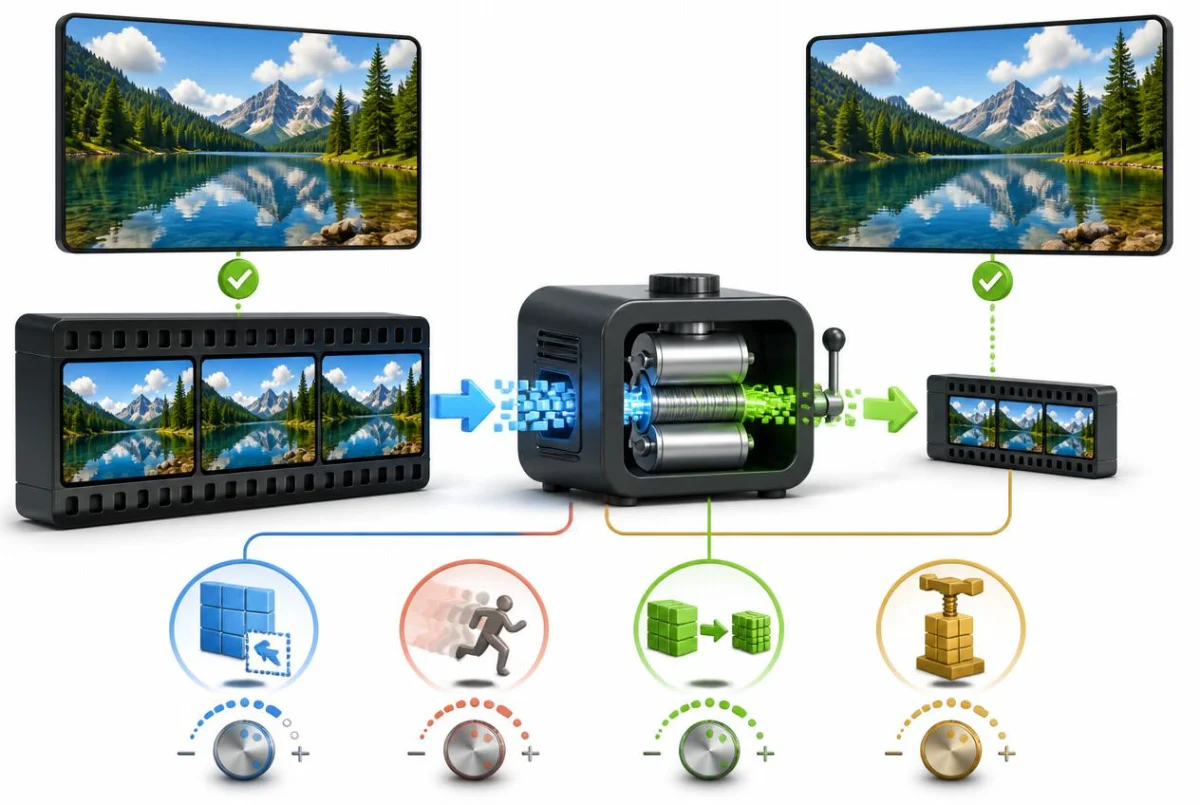
One sentence of theory makes every option below easier to judge: HEVC (also called H.265) is a smarter compression standard that reproduces the same visual quality as the older H.264 at roughly half the bitrate — so re-encoding an old H.264 video into HEVC at half the bitrate can halve its size with no change you can see. The saving comes from the lower bitrate; the newer codec is simply what lets you go that low without the picture falling apart. Switch codec but keep the bitrate, and the file won't get smaller.
The second lever is bitrate versus resolution, and it matters more than most people think. Keeping the resolution and lowering the bitrate trims data evenly across the frame, which the eye barely notices within reason. Dropping the resolution — 4K down to 1080p — cuts far more aggressively, but the loss becomes visible the moment the video is played on a large screen. If "no visible quality loss" is the goal, be conservative about how far you drop the resolution and let the codec do most of the saving.
Two practical rules follow from this. First, compression is one-way: you cannot restore detail once it has been encoded away, so keep the original until you have watched the compressed copy and are happy with it. Second, compressing an already-compressed video a second time compounds the loss — pick a sensible target once rather than squeezing the same clip repeatedly.
Free ways to compress: iMovie, Mail/Messages, Shortcuts
iMovie is Apple's free editor and the most approachable option for a single video. Create a new Movie project, add your clip, tap Done, then share it — the export options let you choose a lower resolution such as 1080p or 720p for a 4K original. The catches: it processes one video at a time, exports in the less efficient H.264 format, and the export lands as a new video, so you must delete the original yourself or you have made the problem worse.
Mail and Messages compress automatically, and people sometimes use that as a trick: send yourself the video and save the smaller copy. It does work — Messages in particular shrinks video aggressively so it can travel over the network — but the result is visibly softer, you have no control over the settings, and the compressed copy comes back into a library that still holds the original. As an actual space-saving strategy it is the weakest of the free options.
The Shortcuts app is the most capable free route. Its Encode Media action performs a real re-encode: build a small shortcut that takes selected videos, encodes them at your chosen size, and saves the result back to Photos. It genuinely reduces file size, and you can process a handful of clips in one run. The friction is everything around the encode — you assemble the shortcut yourself, there is no preview of how much space you will save, long videos take a while with the phone unlocked, and originals still need manual deleting afterwards.
All three free methods share one gap: none of them shows you which videos are worth compressing or what you would save. On a library with hundreds of clips, finding the oversized ones is half the work.
Batch-compress your whole library with an app
When the goal is reclaiming serious space — not shrinking one clip to email — the job has three parts: find every oversized video in the library, show what compressing each one would save, and process them in bulk without babysitting. That is precisely the part a dedicated app should do, and it is what we built Photo Slim to do.
Photo Slim scans your library on-device and lists your videos with an estimated size saving next to each, before anything is touched — so you decide from real numbers, not guesses. Compression re-encodes each video with HEVC at your chosen quality level, scaling it down to that tier, and each original goes to Recently Deleted, where it stays recoverable for 30 days in case you want to compare or change your mind. Nothing is uploaded anywhere: the analysis and the encoding both run entirely on your iPhone.
The same scan also covers the rest of your space problem — duplicate videos, duplicate and similar photos, blurry shots, old screenshots, and Live Photos you can convert to stills for an easy extra saving. Scanning and previewing are free, so you can see the full gigabyte count first; unlocking cleanup and compression is a $14.99 one-time purchase with no subscription. It requires iOS 16 or later and is on the App Store at https://apps.apple.com/app/id6784203501.
FAQ
Does compressing a video reduce its quality?
Technically yes — compression discards data — but done right, the difference is invisible. Re-encoding an H.264 video into HEVC at the same resolution and roughly half the bitrate can halve the size with no change you can see, because the newer codec simply stores the same picture more efficiently. Visible loss appears when the bitrate is pushed too low or the resolution is downscaled, which is why aggressive compressors like Messages produce soft results.
What is HEVC, and will my videos still play everywhere?
HEVC (High Efficiency Video Coding, also called H.265) is the video codec Apple has used by default since iOS 11 — it matches H.264 quality at about half the file size. Every iPhone from that era onward, plus modern Macs, Windows PCs, and TVs, plays it natively, and when you share to an app or device that needs the older format, iPhone converts automatically.
How much storage can compressing videos actually free up?
It depends on what you shot. Old H.264 footage re-encoded to HEVC at half the bitrate drops by roughly half; already-HEVC 4K video compressed at a slightly lower bitrate saves less per clip but adds up fast because 4K files are so large. To see what your own library gives back, compress a small batch first and compare the Photos total in Settings > General > iPhone Storage before and after.
Can I undo compression if I don't like the result?
You can't decompress a video — the discarded data is gone — so the undo has to come from keeping the original. Whatever method you use, don't delete the source until you've watched the compressed copy. Photo Slim handles this automatically: the original moves to Recently Deleted and stays restorable for 30 days.
Should I just use iCloud's Optimize iPhone Storage instead?
It solves a different problem. Optimize Storage keeps full-size videos in iCloud and only small versions on the phone — your device gains space, but the full files still count against your iCloud plan, and you need a connection to re-download them. Compression actually shrinks the files themselves, saving space on the phone and in iCloud at once. Many people sensibly use both.
Sources