
How to Clear the Hugging Face Cache on a Mac
AskClean Team · Updated 2026-09-29
To reclaim Hugging Face cache space on a Mac, identify the cache used by your application, inspect it with hf cache ls, and preview a specific repository or revision with hf cache rm --dry-run. Preserve required offline models and custom work. Do not delete shared blobs or the entire HF_HOME folder blindly.
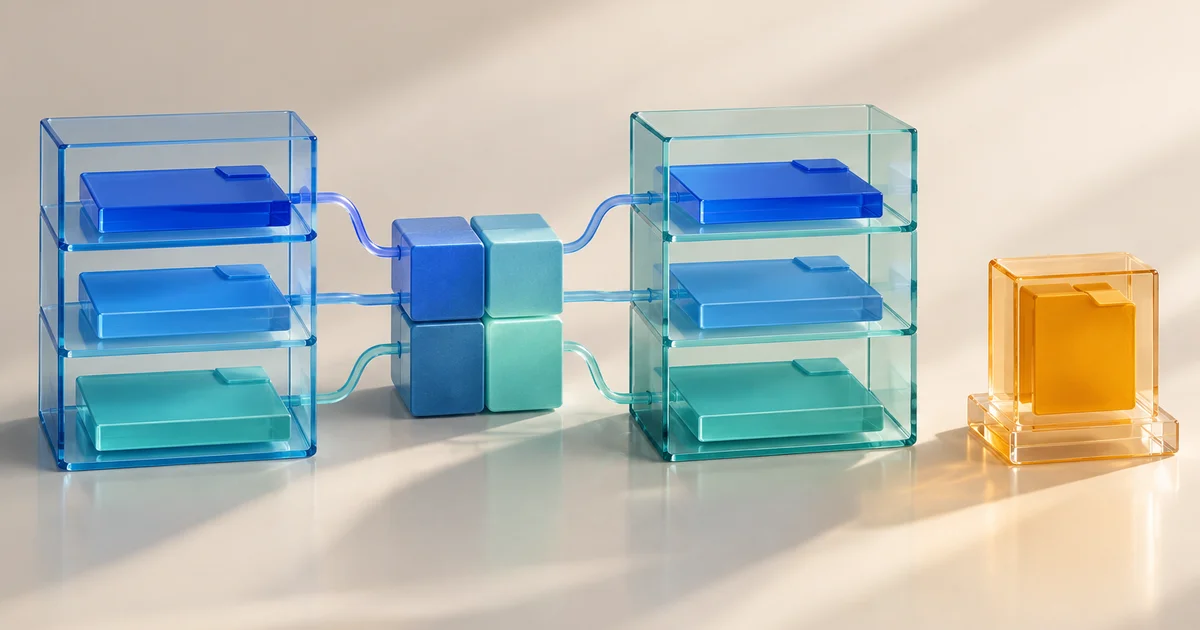
Separate downloaded models from your own work
Before removing a model, check which application or Python environment uses it, which revision your project needs, and whether you rely on it offline. Start with a cache entry you no longer need and know how to restore. A large or unfamiliar folder may still contain files your application depends on.
Separate downloads from the artifacts you created: fine-tuned checkpoints, adapters, tokenizer changes, conversion outputs, private datasets, notebooks, prompts, and project configuration. A downloaded base model may be available again, while a local adapter or conversion recipe exists only on this Mac. Back up and verify that work before reclaiming any model-related storage. Some backup tools skip caches marked with CACHEDIR.TAG, so confirm that your backup actually includes the files you need.
If you do not know how to restore an item and get the application working again, keep it for now. Start with a smaller cache entry whose purpose you understand. Decide whether the space recovered is worth the time, bandwidth, and access you would need to download or rebuild it.
Locate the cache that the application actually uses
The usual Hub cache is ~/.cache/huggingface/hub. HF_HUB_CACHE selects the Hub repository cache directly; HF_HOME changes the broader Hugging Face home directory, while XDG_CACHE_HOME can influence the default when HF_HOME is unset. An explicit cache_dir argument in an application can also choose a different location. Check the environment that starts the application rather than assuming every app shares your terminal settings.
HF_HOME can also contain authentication data, so do not delete the whole directory to clear model downloads. Check the cache location locally. If you need help, share only the relevant settings with sensitive values removed; keep authentication files and private repository lists out of support tickets.
Check GUI applications, notebook kernels, and command-line projects separately. They may use different environment settings. An empty default Hub directory does not mean there are no models on your Mac: another application may use a custom cache or its own model storage. Confirm the path before measuring or removing files.
We checked these commands with huggingface_hub 2.0.0 on 2026-09-29. Run hf cache --help in your environment first. If your version offers different commands or options, follow its documentation.
Inspect repositories and revisions before selecting one
Start with hf cache ls --no-truncate to list complete repository identifiers. Then run hf cache ls --revisions --no-truncate --show-warnings to inspect full revision hashes and any cache problems. Detailed warnings are hidden by default in the tested version. For a custom Hub cache, pass the same --cache-dir value to every command. Keep the output private if it identifies confidential projects.
A revision's displayed size may be larger than the space deleting it would free. Snapshots can share data, and some cache layouts also share blobs across repositories. Adding their sizes can count the same files more than once. Investigate warnings about unreadable or inconsistent entries before removal; a completed scan does not prove that every file was recognized.
Choose a specific target, such as an abandoned experiment or a revision your project no longer uses. Check code and configuration for pinned revisions before deciding. Access times can help, but an older model may still be needed for an occasional evaluation or offline recovery. Age alone is not a reason to delete it.
- Close the applications and jobs that use the candidate cache.
- Run hf cache ls --no-truncate, then hf cache ls --revisions --no-truncate --show-warnings, against the verified cache path.
- Check whether any application or project still needs the selected repository and revision.
- Record the current directory size and available disk space before changing anything.
Preview the removal before confirming it
Use hf cache rm with one complete repository ID or revision hash from your inventory, adding --dry-run first. For a model repository, keep the model/ prefix shown by the CLI; a disk folder name beginning with models-- is not the same identifier. For one revision, use its full hash and check which repository it belongs to.
Read the preview's target summary and estimated space savings. It is not a file-by-file inventory. Selecting a repository covers all of its cached revisions, so use a revision target if you mean to remove only one. After checking the scope, repeat the same command without --dry-run. Leave the confirmation prompt enabled for a final check.
Use the same target and cache directory for the preview and removal. If the list changes unexpectedly, check whether another application restarted or downloaded data. If the preview fails, stop and investigate. Let the Hugging Face cache manager handle shared blobs and snapshot references; deleting individual files in Finder can affect other revisions that need them.
Cache removal deletes files directly; it does not move them to the Trash. You will need a working backup or another download to restore a removed revision. Keep a backup until your checks pass, especially for models that are private, gated, no longer published, modified locally, or needed offline.
Choose the target from your own cache inventory. Check both the repository and revision carefully before running the removal command.
Review every candidate before using prune
hf cache prune --dry-run previews detached revisions and incomplete downloads in the verified 2.0.0 CLI. A detached revision has no named reference in the cache, but your project may still request that exact revision. Check your projects before approving its removal. The CLI cannot tell you which models you intend to use next.
For the first cleanup on a development Mac, a single explicit removal is easier to evaluate than a broad sweep. After it, run the affected application and measure again. If you later choose to prune, apply the same checklist to all candidates and stop active downloaders first. An incomplete file may be evidence of an interrupted transfer, but it should not be mistaken for an abandoned transfer while another job is still using the cache.
Keep Hub, datasets, Xet, and local exports separate
Hugging Face Datasets can store processed data in its own cache. Removing Hub downloads does not necessarily remove Arrow data or transformation results created by a dataset pipeline. HF_DATASETS_CACHE and HF_HUB_CACHE serve different scopes; consult the Datasets cache controls for generated dataset files and make sure no active process still relies on them.
Downloads made with an explicit local_dir go to a destination chosen by you or the application, with metadata stored there as well. Treat that directory separately from the shared Hub cache. If you have added scripts or edited downloaded files, preserve those changes before removing anything. A fresh download will not restore your local edits.
Xet transfer storage is separate too. Check its location and the client version that created it before deciding what to remove. Clearing Hub revisions does not necessarily clear transfer caches, processed datasets, exported copies, or another application's model storage. If disk usage is still high, inspect each remaining category separately.
Check that your remaining models still work
Repeat your inventory and disk measurements, then load a model and revision you intended to keep. Run a small task with a known result; importing a Python library alone does not check the model files. If you need offline access, test with the network disconnected before relying on the Mac away from a connection.
If the next run downloads the same model again, the cleanup may have removed data the workload still needs. That is a reason to revisit the selection, storage capacity, or cache placement. Repeatedly deleting and downloading a required model wastes time and bandwidth without solving the underlying capacity problem.
If the models you need regularly exceed your Mac's capacity, an external drive may help. Check free space, permissions, and support for symbolic links, which can connect snapshots to shared blobs. Preserve those links and the files they point to when copying. Configure each application to use the new location and test its required models there before removing the original. Keep the drive connected whenever those applications need it.
If a check fails, pause the cleanup. Locally, note the model, revision, cache path, and error needed to investigate. Check that the application uses the environment you inspected and whether it needs a removed file. Restore a backup or download the required revision after confirming access and free space. Resolve that failure before removing another entry, so you can tell which change caused the problem.
How we checked these commands
On 2026-09-29, we created an offline temporary Hub-style cache containing two synthetic revisions, one shared blob, and one exclusive blob for each revision. With huggingface_hub 2.0.0, revision listing succeeded, the rm and prune dry runs left the fixture unchanged, and removing the old revision preserved the current revision and its shared data while deleting the old exclusive blob.
A second offline check confirmed that --show-warnings reveals a deliberately malformed cache entry, --no-truncate preserves the full revision ID, and dry runs accept both a type-prefixed repository ID and a full revision hash without changing the fixture.
These checks used synthetic files in temporary folders. They did not test real model downloads, inference, a user's cache, drive migration, or cleanup of blobs shared across repositories. They do not predict how many gigabytes your Mac will free or validate every cache format. Investigate a damaged or custom cache before removing entries.
AskClean can help you see where storage is being used on your Mac. Scanning and preview are free; AI analysis and cleanup require Pro. Disk cleanup permanently deletes the items you confirm. Use the Hugging Face CLI to manage cached revisions and their shared files, and keep original project work out of the cleanup selection.
What can be recreated, and what must be kept
Check each category separately. The table explains what you need to preserve or restore; it does not mark files for automatic deletion.
| Item | Where to inspect | What to check before removal |
|---|---|---|
| Hub repository or revision | hf cache ls --revisions | Check the exact selection. Restoring it may require another download and access to the same repository. |
| Shared blobs and snapshots | Verified Hub cache | Use the cache manager; revisions and, in some layouts, repositories can share the same stored files. |
| Detached revisions | hf cache prune --dry-run | A project may still need an exact revision even when the cache has no named reference to it. |
| Generated dataset cache | HF_DATASETS_CACHE / Datasets cache controls | Separate from Hub downloads; recreation may require processing time and source data. |
| Custom checkpoints, adapters and source | Your project and backup locations | Keep your original work. Verify that backups include it, especially when it is stored under a cache directory. |
| Hugging Face home and authentication state | HF_HOME | Do not delete the entire home directory to remove model cache entries. |
The local regression used a tiny synthetic cache. The size of that fixture is not a benchmark or an estimate of real-world savings.
FAQ
Can I delete ~/.cache/huggingface on my Mac?
Do not treat the whole directory as disposable. Locate the active Hub cache, preserve authentication state and original work, then preview explicit repositories or revisions with the installed hf cache interface.
Why does removing one revision free less than its displayed size?
Revisions can share files, and some cache layouts share them across repositories too. Check the preview's estimate and compare disk usage and available space before and after. Adding displayed revision sizes can count the same files more than once.
Does a detached revision mean no application uses it?
No. A project may pin an exact revision even when there is no named cache reference. Check the project's requirements before pruning.
Will my models be available offline after cleanup?
Only retained, complete cached files can support the workloads that need them. Validate a representative offline load before removing your backup or relying on the machine while disconnected.
Will hf cache rm remove my fine-tuned model?
It can if your custom files are inside the selected cache entry. Keep checkpoints, adapters, and modified files outside entries you plan to remove, and verify their backups. A folder named cache can still contain your only copy of important work.
Sources